
No shared password
Logged changes and check-ins are linked to the individual account that performed them.
Create an event with a fixed capacity, collect guests, divide the work and use the same event data at the door and during your review.
The complete flow
Preparation, invitations, team access, check-in and insights stay with the same event, so each stage does not require a new list.
Event, venue and capacity
Links, imports and manual guests
Individual accounts and role permissions
Search, check in and offline queue
Current check-ins, sources and capacity
Retain anonymously and compare
In practice
Plus1Mee connects the work behind the scenes with the welcome at the door and the insights afterwards.

01 · Prepare
Venue, capacity, guests and crew are kept in the same event before opening.
02 · Invite
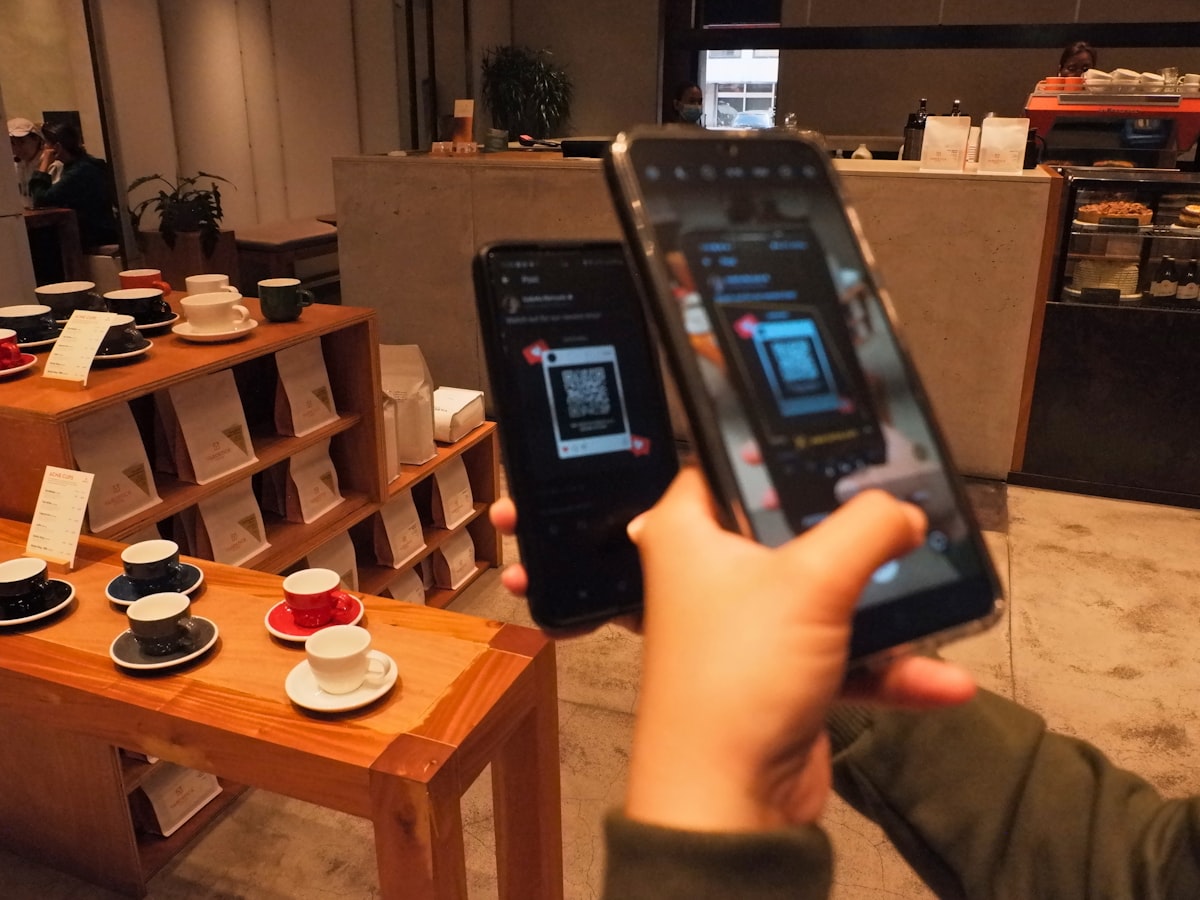
You can copy an invitation link, share it as a QR code or open a share action on your own device.

03 · Improve
Attendance, peak times and sources become useful input for your next edition.
The day-to-day workflow
Start small with a draft event. Then add only what your guest flow needs. The in-app checklist always shows which essentials are still missing.
Name and maximum capacity are required. You can add the date, venue and description immediately or complete them later. Before creation, Plus1Mee calculates how many credits the exact capacity requires and what balance will remain.
Expecting twenty friends, a list from a client or guests from multiple promoters? Add names yourself, import a spreadsheet or share your own registration link.
Import an existing list in a controlled way
Copy the link, download the QR code or open a share action
Quickly add one person or plus-one
Organise VIPs, crew, press or business relations, for example
When the doors open, you need speed. Mobile check-in lets your crew search, confirm the correct number of people and register guests without first having to understand the entire management system.
Search by name or email
Find the right guest without paging through a separate list.
Confirm the number of people
See immediately whether a plus-one is allowed before checking in.
Register plus-ones
Process permitted additional guests without opening a separate list.
While the event is running, see what is really happening: how many people are inside, how many are still expected and whether you are approaching capacity.
Invitation links explained
Give a promoter, campaign or physical QR code a recognisable link of its own. Every registration enters the same event while clicks, responses and conversion remain separate for each link.
Choose an active period, registration limit, plus-one, automatic approval or manual review. A waiting list can be used once event capacity is full.
Copy the URL, download the QR code or open a share action for the social channel you want to use.
For each link, review how often it was opened, how many registrations it produced and the resulting registration rate.
Illustrative campaign overview
Promoter Noor
Individual link
Friends campaign
QR at the bar
Physical source
Registration page
Promoter Noor · VIP
128
Clicks
42
Registrations
32,8%
Conversion
60
Link limit
Roles and temporary access
The workspace owner creates team accounts. For each event, choose one of four roles and an optional start or expiry time. The team member signs in with a username or email address and sees only assigned, active events.
Name, unique username and optionally phone or email.
One account can have a different role or expiry date for each event.
Share the one-time activation link yourself through WhatsApp or SMS.
After login, only assigned events and actions are shown.
These are the standard permissions. Access can also have a start and expiry time.
| Role | Event | Guests | Links | Check-in | Insights |
|---|---|---|---|---|---|
O Organiser Owns the workspace, credits, events and team. | Full control | All | All | Yes | Yes |
M Manager Runs one or more assigned events operationally. | Edit | All | All | Yes | Yes |
P Promoter Works only with their own guests and campaign links. | — | Own only | Own only | — | — |
D Door staff Uses the focused entrance interface. | — | Search | — | Yes | — |
V Read only Can view event information and results without changing them. | View | — | — | — | Yes |
Logged changes and check-ins are linked to the individual account that performed them.
Let an assignment expire after the event or remove only that event access without deleting the entire account.
Team members do not pay separately, spend credits or manage their own events or billing settings.
Complete overview
Start with an event, venue and guest list. Add roles, links or analysis only when you need them.
Create a free accountNumbers with context
Insights brings together the current guest list, check-ins, invitation links and previous events. Its attendance forecast is an estimate, not a guarantee.
Illustrative example · one event
Nachtwerk · Studio Noord
300
Expected
247
Inside
82%
Attendance
Check-ins over time
Peak between 00:30 and 01:15
82%check-in rate
A range based on your list, invitations and relevant previous events. Your maximum capacity remains the limit.
The timeline shows the actual peak so you can plan entrances and staffing more effectively.
Compare clicks, registrations and registration conversion for each link.
Compare events or venues by attendance, no-shows, plus-ones and capacity.
Foundation & reuse
Build a reliable foundation first and reuse it for the next edition.
Example: An event with 50 guests uses 1 credit. Increasing to 250 costs 2 additional credits.
Names & lists
Work with one current list, even when names arrive from multiple sources.
Example: Import your client’s business contacts, then manually add the individual names received through WhatsApp.
Campaigns & promoters
Create different routes into the same guest list and measure what each source delivers.
Example: Give each promoter their own link and compare clicks, registrations and registration conversion.
Crew & access
Everyone receives their own account and access only to the work that belongs to their role.
Example: Give door staff access only to search and check in, while the manager handles event details, guests and invitation links. Only the organiser spends credits.
Doors open
The door view keeps actions simple. Offline check-ins are synchronised with the event after connectivity returns.
Example: If coverage at the south entrance drops, the queue remains stored locally and synchronises when the connection returns.
Results & privacy
Use the figures for your next plan without retaining personal data indefinitely.
Example: Compare two editions at the same venue and use the peak time and the gap between registrations and attendance for your next staffing plan.
From explanation to your own event
Create your free account and start an event for up to 15 guests. Larger events use credits.